Prime Video Case Study:
Automating 2.5D Interactive Parallax Campaigns


Hover and scroll on the banner below to experience the parallax effect.
Disclaimer: This project is an educational demonstration and a personal exploration of creative technology, not affiliated with Amazon Prime.
The Objective
One of the greatest advantages of Generative AI is its ability to eliminate highly repetitive, time-intensive workflows, allowing teams to scale output rapidly. For this project, my goal was to build a custom, automated pipeline from scratch that takes a standard 2D promotional asset (like a movie poster) and automatically processes it into a layered, 2.5D interactive HTML parallax experience.
To demonstrate both technical execution and scalable leadership, this case study is divided into two parts:
-
Part 1: Building the AI Pipeline: A deep dive into how I engineered the workflow, debugged AI models, and solved technical hurdles to achieve production-ready quality.
-
Part 2: The Designer's Playbook: A streamlined operational guide demonstrating how a Prime Video designer would actually interact with this tool to generate campaigns in minutes, without touching a line of code.
The Pipeline & Toolkit
This project leverages Large Language Models not just for ideation, but as direct programming copilots to construct a custom software solution. While enterprise-grade tools exist for commercial deployment, this project utilizes open-source models to demonstrate a fundamental understanding of the underlying technology.
-
Gemini 3.1 Pro (Web & CLI): Used as the primary NLP interface for strategic problem-solving, and as the integrated coding agent to write, debug, and execute Python and React scripts locally.
-
Meta SAM 2 (Segment Anything Model): An open-source segmentation model implemented to auto-detect and cleanly extract specific foreground subjects.
-
Stable Diffusion 1.5 & LaMa: Explored SD 1.5 for inpainting, but successfully pivoted to LaMa (Large Mask Inpainting) to intelligently heal and reconstruct the background post-extraction.
-
React & Node.js: Used to build the final interactive User Interface and compile the parallax scrolling logic.
Part 1:
Building the AI Pipeline
Step 1: Initializing the Development Environment
To begin, I set up the local development environment and initialized my AI coding helpers.
1. Environment Installation
-
Node.js & Python: Downloaded the Node.js Windows installer (.msi) and followed the setup to install it and its required dependencies. Installed Python to handle the machine learning models.
-
Workspace: Created a new project folder, opened the terminal, and navigated to the directory (cd folder-name).
-
CLI Initialization: Typed gemini in the terminal and followed the steps to sign in with Google.
2. Agent Configuration & Prompting
-
Execution: Enabled "YOLO mode" in the CLI so the AI could autonomously write and execute code directly in my terminal.
-
The Workflow: All communication and prompt preparation were done via Gemini Web. Once ready, I passed those instructions into the Gemini CLI to build the app.
-
The Initial Prompt: I asked the CLI to create a tool that turns a 2D image of The Boys into a 2.5D Parallax image. After consulting with Gemini Web about open-source options, I instructed the CLI to use the Meta SAM model for the asset extraction.


Step 2: First Steps & Basic Extraction
The initial test run of the code was a complete failure because it provided no visual feedback. I needed to build a way to actually interact with the tool.
1. Building the Visual Interface
-
Visual Window: I asked the Gemini CLI to generate a visual window that displayed the image as it was being processed.
-
Click Selection: I also instructed it to let me click on the image so the SAM model would show exactly what area was being highlighted.
-
The First Attempt: The model selection struggled heavily, failing to correctly recognize the contours of the character.
2. The Copilot Workflow in Action During this phase, I established a clear rhythm with the tools:
-
Gemini Web: Handled conversational discussions and aided in NLP prompt generation.
-
Gemini CLI: Handled direct code modifications, researching, and debugging. (For example, if it failed a syntax check, it researched the fix online and resolved it within the same context loop).
-
Meta SAM: The open-source model running the actual segmentation.
3. Asset Extraction
-
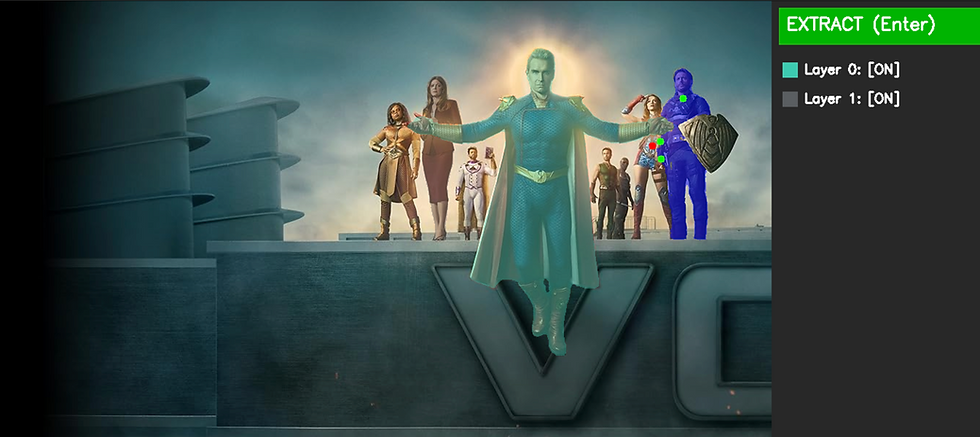
The Extract Button: I had the CLI add an 'Extract' button to isolate the highlighted subject. Here are some examples of those early, poor-quality extractions:


Step 3: Improving the Model
The initial extractions were very poor quality, and I needed to investigate why the model was producing such bad results.
1. Testing Input Variations
-
Multi-Point Inputs: I tried providing multi-point inputs to guide the SAM model. This improved the output slightly, but the quality was still not high enough for a production asset.
-
Bounding Box: Next, I added a bounding box feature to help the model recognize the full subject, but the extraction performance remained poor.
2. Automated Debugging
-
Since manual input changes were not working, I asked the Gemini CLI to investigate the code and resolve the issue.
-
Gemini performed the debugging automatically. Each time it pushed an update, I retried the tool to check for visual improvements.
3. Fixing the Core Logic
Through iterative debugging, Gemini identified three technical failures causing the bad extractions, which we quickly patched:
-
Interpolation Error: The mask was being converted to rigid, blocky pixels before being resized to fit the poster. Reversing this order (resizing smoothly first, then cutting) restored sharp curves around the character.
-
Incorrect Mask Indexing: SAM generates multiple mask scales. The script was hardcoded to grab the smallest detail layer instead of the full-body bounding box.
-
Aspect Ratio Distortion: Squishing the image into a perfect square before processing destroyed SAM's ability to detect natural edges. We updated the logic to preserve natural proportions.
-
The Result: With these structural fixes applied, the extraction performance improved drastically.


Step 4: Fixing Aliasing (Jagged Edges)
Even with the core logic fixed, the extractions still suffered from poor visual performance around the edges.
1. The Problem: Aliasing
-
The "Stair-Step" Effect: The borders of the extracted assets were jagged and pixelated. In the visual effects industry, this is known as aliasing.
-
Why It Happens: Even though the underlying interpolation was smooth, the script was still applying a strict mathematical cut-off at the very end (> 0.0). Because pixels are tiny squares, forcing a perfectly curved shape (like a character's shoulder) into a rigid grid of "100% visible" or "0% visible" naturally creates stair-stepped edges.
2. The Solution: Alpha Matting
-
Feathering the Edges: To get professional, production-ready extractions, I needed to introduce Alpha Matting (or "Feathering") to soften the transition pixels right on the boundary.
-
The Fix: I instructed the CLI to apply a subtle Gaussian Blur directly to the final alpha channel in the Python pipeline right before export. This smoothed the rigid pixels and allowed the asset to blend seamlessly into new backgrounds.


Step 5: Adding UI Improvements
With the extraction logic working perfectly, I needed a proper User Interface to make the tool easy to operate.
1. Initial Prototypes (Gradio)
-
Basic UI: I started by adding simple UI elements to make multi-layer asset extraction faster and more intuitive.
-
Moving to Gradio: To clean up the interface, I had the CLI migrate the front-end to Gradio, a popular Python UI library.
2. The Pivot to React
-
The Limitations of Gradio: While Gradio was great for basic AI processing, it lacked the flexibility needed to render fluid, interactive parallax scrolling.
-
Rebuilding the Front-End: I instructed Gemini to rewrite the UI using React. React is much better suited for handling dynamic, interactive web content and gave me full control over the visual layers.
3. Refining the Interface
-
Prompt Boxes & Motion Test: With the React foundation in place, I added prompt input boxes (to prepare for the generative AI background steps) and successfully ran the first interactive parallax motion test.


Step 6: Background Reconstruction (Stable Diffusion)
Next, I used Generative AI to fill the empty background left by the extracted character.
1. Initial Inpainting
-
I integrated Stable Diffusion 1.5 to seamlessly recreate the missing background.
2. The Hallucination Problem
-
Instead of generating a clean environment, the model hallucinated additional, deformed characters directly behind the main subject.
3. Masking for Control
-
To regain control, I applied a strict mask. This ensured the AI would only modify the empty space and leave the rest of the original poster completely untouched.


Step 7: Improving the Inpainting
To stop the model from generating unwanted figures, I heavily engineered the text prompts to force a clean background.
1. Prompt Engineering
-
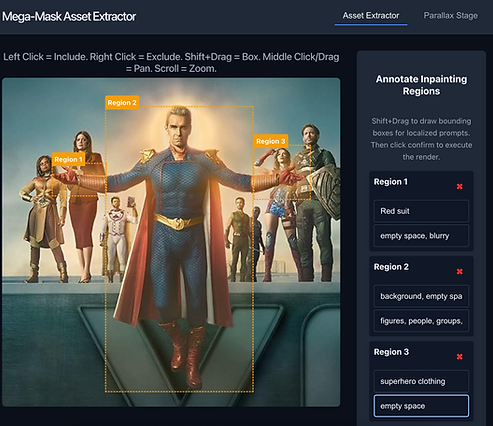
I added strict positive prompts (e.g., "empty cloudy sky, seamless texture") and heavy negative prompts (e.g., "person, superhero, silhouette") to avoid hardcoding image-specific rules.
-
The Result: The prompt boxes helped stop large groups from appearing, but they ruined the inpainting over the existing characters.
2. Multi-Region Masking
-
Next, I attempted multi-region prompting to isolate the edits and gain more control over specific areas.
3. The Limits of Stable Diffusion
-
The model ultimately lacked consistency. Ghostly figures kept appearing behind the main subject despite the strict negative prompts. It became clear I needed to abandon text-to-image generation and switch to a dedicated "object removal" model.



Step 8: Migration to LaMa
With Stable Diffusion struggling, I needed a new approach to fix the background.
1. Consulting Gemini
-
I asked Gemini for an alternative solution to the hallucination issue. It recommended migrating away from text-to-image models entirely and using LaMa, a dedicated object removal model.
2. The LaMa Method
-
LaMa does not use text prompts to try and generate new concepts. Instead, it analyzes the global structure of the image (like the lines of the building and the gradient of the sky) and mathematically "heals" the masked area by intelligently stretching and blending the surrounding pixels.
3. The Result
-
Switching to LaMa drastically improved the background reconstruction, successfully creating a clean, seamless environment without any hallucinations.


Step 9: The First MVP
With the assets cleanly extracted and the background rebuilt, the final step was assembling the interactive prototype.
1. Creating the Parallax Interface
-
I instructed Gemini to create a dedicated Parallax tab within the application to showcase the newly generated assets in motion.
2. Linking Interactive Controls
-
To bring the 2.5D effect to life, I asked the CLI to link the movement of the visual layers directly to the user's mouse scroll.
3. The Final Result
-
The execution was a success, resulting in a smooth, fully interactive parallax prototype that successfully completed the automated pipeline.
Part 2:
The Designer's Playbook
This guide will walk you through the process of creating a dynamic, multi-layered parallax banner from a single static key art image.
Getting Started
To run the application, make sure you have all the dependencies installed and run the start script:
-
Download the project files onto your device and save them to a new folder.
-
Open a Terminal and change directory to the path of that folder.
-
Run the install script ./install.sh to download and install the required dependencies. Type ./install.sh into the terminal and press enter.
-
You are now ready to run the program! Run the program by typing ./run.sh and pressing enter.
Creating Your Parallax Banner
Follow these steps to generate your multi-layered banner:
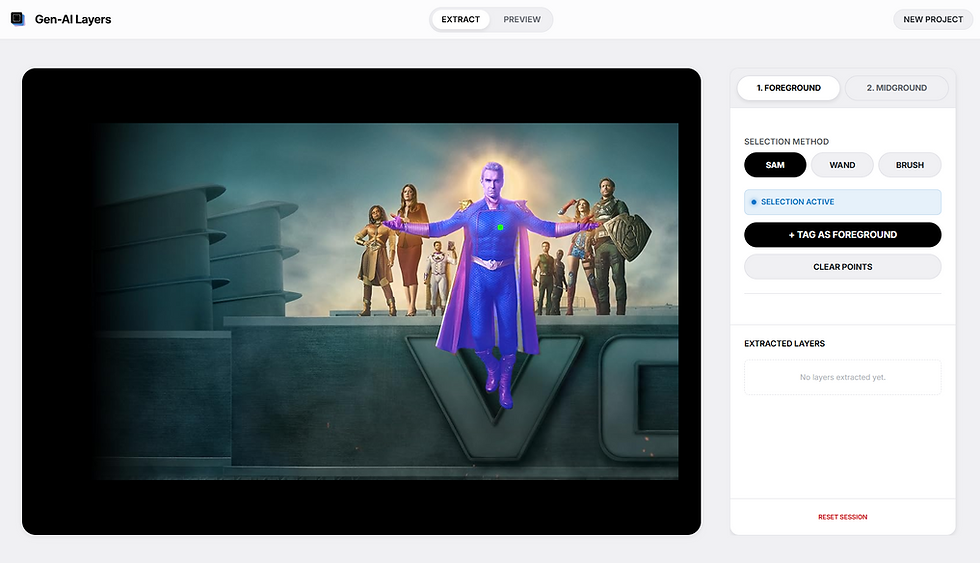
1. Upload Key Art
-
Begin by uploading your static key art asset into the tool. This will be the base image from which we extract the layers.
2. Extract Foreground Elements
-
Select the SAM (Segment Anything Model) tool from the toolbar.
-
Click on the foreground elements in your image to select them.
-
Once a foreground element is fully selected, click the "+ Foreground" button to finalize it as a foreground layer.
-
Repeat this process for all distinct foreground assets in your image.
-
After all foreground elements are selected, run the Foreground Inpainting process to fill in the background behind them.
3. Extract Midground Elements
-
Repeat the exact same extraction process for the midground assets:
-
Use the SAM tool to select midground elements.
-
Finalize each selection by adding it as a midground layer.
-
Run the Inpainting process for the midground to fill the background behind them.
-
4. Adjust Parallax and Motion Limits
-
Once both foreground and midground layers are extracted and inpainted, you can preview the parallax effect.
-
You can now set the limits of motion independently for both the foreground and midground assets to get the exact dynamic feel you want.
5. Finalize Banner Assets
-
Check the full banner preview to see the final composition.
-
Upload your own custom logo.
-
Upload the top/bottom banners appropriate for the specific TV show or movie you are creating the banner for.
Your dynamic parallax banner is now complete and ready to be exported!
High Fidelity Design